Google Forms Sync
How to use Google Forms Sync
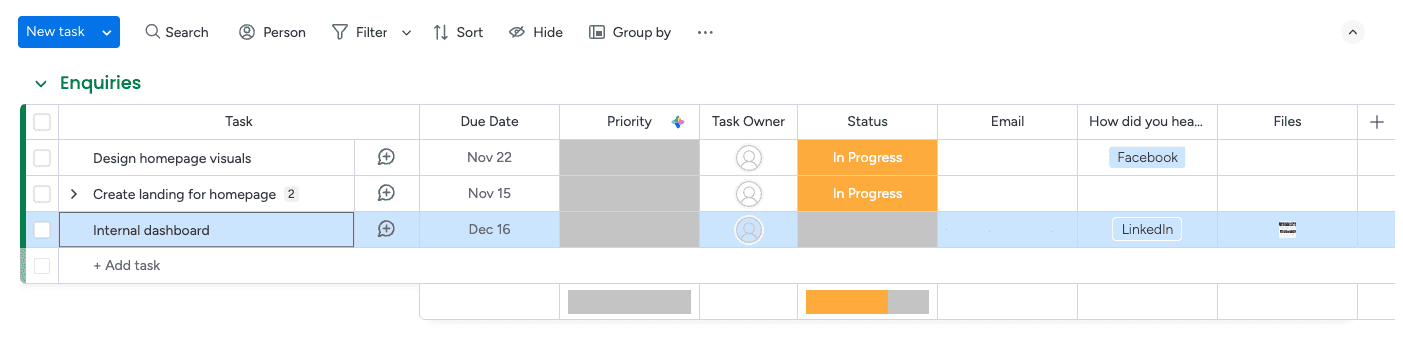
New Google Form responses become items on a monday.com board. Install the app, connect Google, choose a form, and match its questions to your columns.
Before you start
- An admin of the monday.com account installs the app. Anyone who can edit the board can then add the view.
- Connect Google accounts that can open your desired form(s). Form dropdown shows all forms available to connected Google accounts.
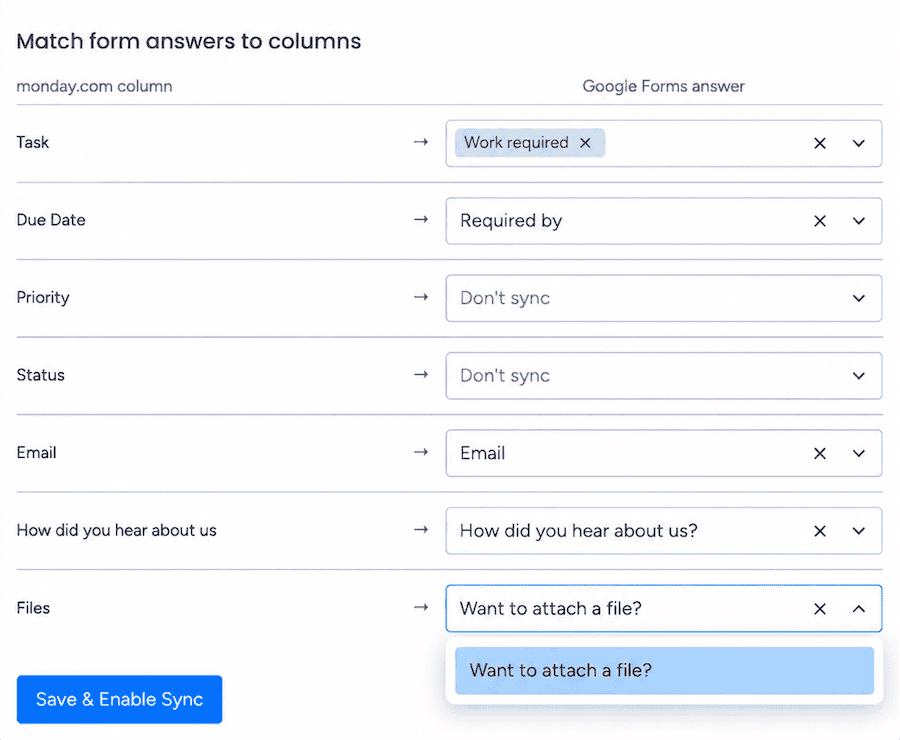
- monday board columns are shown on the left, Google form questions on the right. Map at least one question to a monday board column to enable syncing.
- After a form sync is saved and enabled, responses become items or subitems in a monday board.
- The first save asks for monday access permissions. Items cannot be created without these permissions.
- Responses are written to the board as they come in. This app does not keep a copy of them.
- File attachments: files from Google Forms responses can be synced to monday Files columns (max 5 files with 10MB per file per response). Files can also be synced to Text, Long Text or Links columns as simple hyperlinks to your Google Drive files without any size limitations.
- Enabling form sync does not affect your monday automation or integration allowance. Responses are added to boards directly via monday's APIs, without consuming your automations budget.
Install the app
-
Install from the marketplace
Open the monday.com marketplace from the puzzle icon at the top right. Search for Google Forms Sync and choose Install. Only an account admin can install it. Anyone else can send a request to an admin.
-
Open the board
Open the board that should receive the form responses.
-
Add the view
Select the + button under the board name, then Apps, then Google Forms Sync. If it is not listed there, open More views and search for Google Forms Sync.
How setup works
-
Connect Google
Click Connect Google and sign in. You can connect multiple Google accounts to sync forms stored in different accounts.

-
Choose a Google Form
Choose the form to sync. Its questions load as soon as you select it.

-
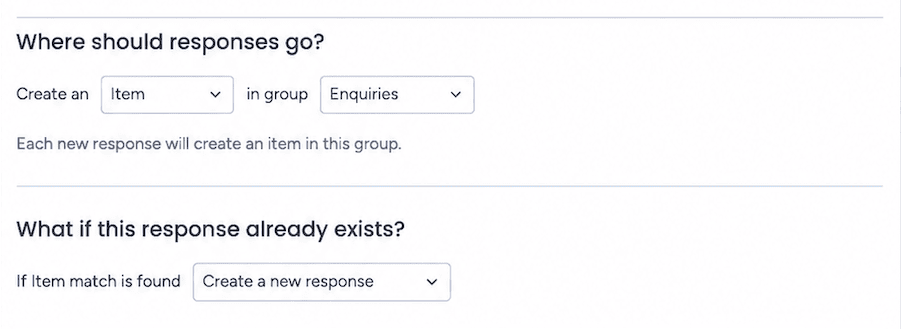
Where should responses go?
Create an item in a group, or a subitem under an item. On this same screen, choose what happens when a response already matches an item. The default option creates a new item each time.
-
Match form answers to columns
Choose the question that fills each column. Map at least one, then click Save & Enable Sync.
-
Submit a response
Submit the form once. A new item or subitem appears in the group you chose, with the form answers in the mapped board columns.